
Data Framework
In this menu you can configure and add the data connections, data sets and reports that will be used on the platform.
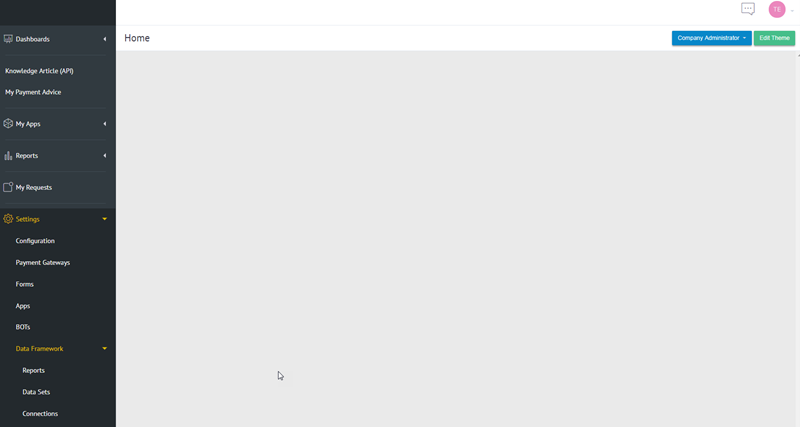
Quick start
Connections
In Connections page, you can configure the data connections to be used for the platform.
And,connections to on-premises resources require Microsoft Hybrid Connection Manager Installed and Configured.Read the hybrid connection manager here
New Connection
To set up a connection, you have two options when you click the Add button in the upper right corner.
Add SQL Connection
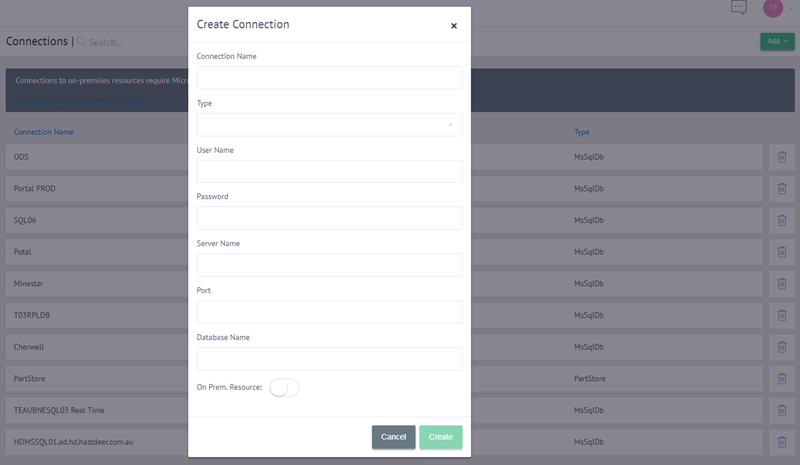
The following information must be entered:
- Connection Name : Name for the connection
- Type : Select one of the below option based on SQL type
- MS SQL Server
- Oracle SQL Server
- MySQL Server
- User Name : The account have the access to the database server
- Password : The password for the account
- Server Name : The database server for the connection
- Port : The database server port for the connection
- Database Name : The database name for the connection
- On Premises Resource : Enable it if the server host on premises
Add PartStore Connection
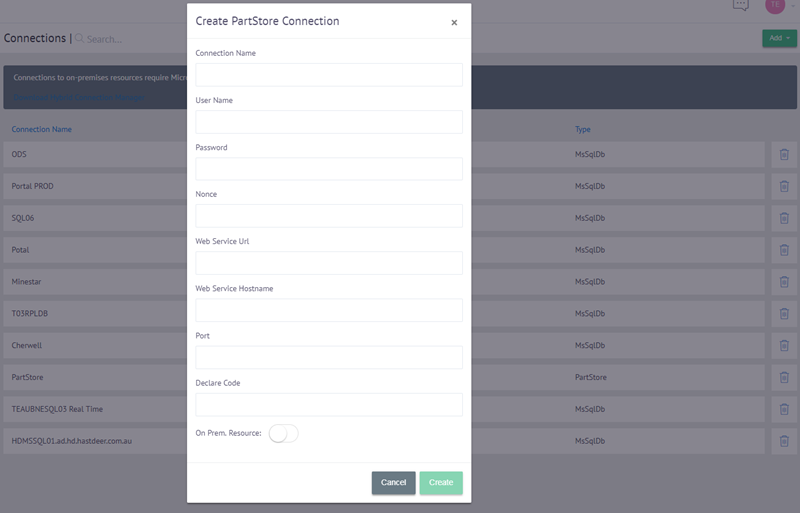
The following information must be entered:
- Connection Name : Name for the connection
- User Name : The account have the access to the part store web service
- Password : The password for the account
- Nonce : (Update later)
- Web Service Url : The Url for the part store web service
- Web Service Hostname : The host for the part store web service
- Port : The port for the part store web service
- Declare Code : CAT dealer code
- On Premises Resource : Enable it host on premises
Edit Connection
A connection grid to show all connections you have created. At upper section, you can type in search box to filter the results.
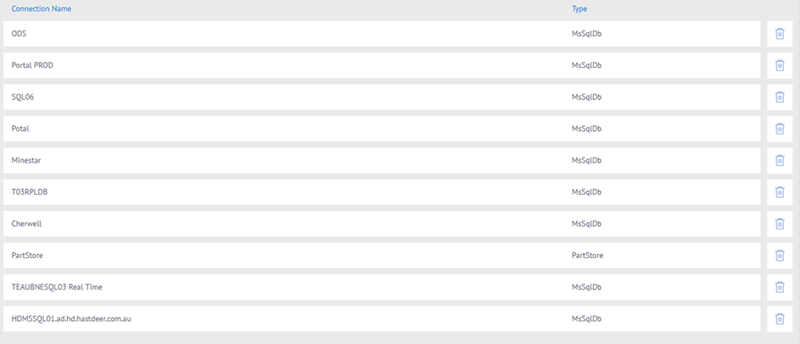
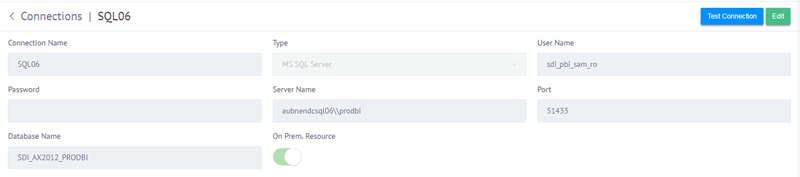
You can go the the details by clicking the row in connections grid, in detail page you are able to test/edit this connection.
Data Sets
In Data Sets page, you can configure data set to be used for the platform.
New Data Set
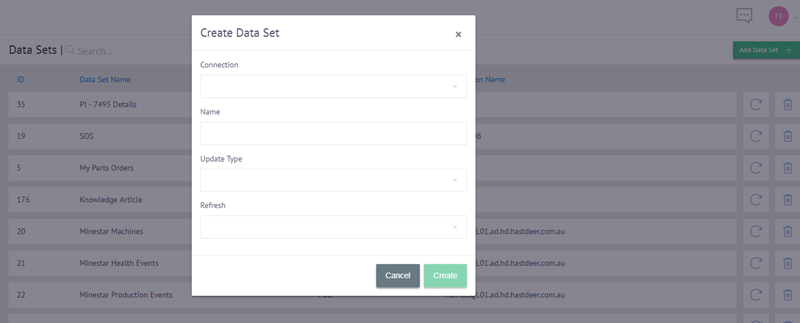
To set up a new data set, the first step is to create it by clicking the Add Data Set button in the upper right corner and entering the following information:
- Connection : Connection of this data set to use
- Name : Data set name
- Update Type
- Full : Load the entire data set always, truncate all and re-populate all to cloud
- Incremental : Load only deltas (new / updated records) to cloud
- Live : Make a direct query to the data table in its location (usually used for the data hosted on cloud)
- Refresh: Recurrence for scheduled job to refresh this data set
Edit Data Set
After data set created, you need go the the details page to do further configuration by clicking the row in data sets grid.
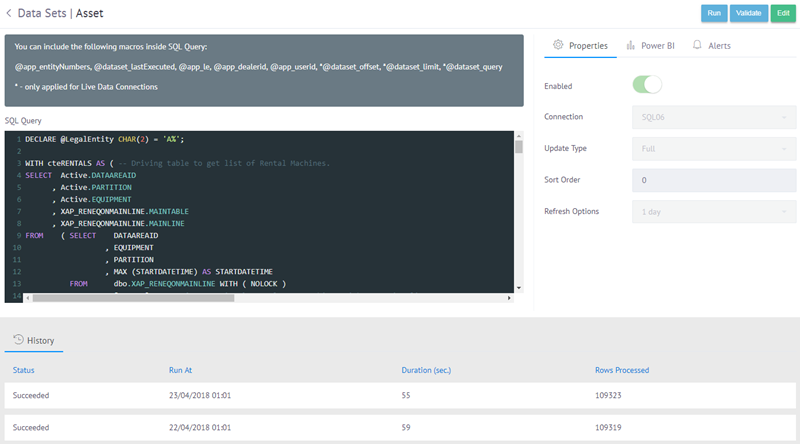
At left side, there is SQL query editor for you to define data set by using SQL select statement, find more here
At right side, there are tabs for you to do configurations for this data set, find more here
In button section, you can edit the data set, validate SQL query and manually run data refresh directly by clicking run button.
In lower section, you can see data refresh history for the data set (Not available for live data set).
SQL Query Editor
You need to provide SQL Query to define the data set you want it to be, inlcuding
- Source table name
- Selection criteria
- Column names
Read SQL SELECT Statement here
For incremental update, you need to inlcude below macro inside SQL query
- @dataset_lastExecuted : Used for incremental update, the value is the max value of incremental column be setup in properties tab, find more here
You can include the following macros inside SQL Query to limit records are only current user related
- @app_entityNumbers : The value comes from current user token (entity numbers), find more here
- @app_le : The value comes from current user token (leganl entity), find more here
- @app_dealerid : The value comes from current user token (dealer Id), find more here
- @app_userid : The value comes from current user token (user Id), find more here
And, you can further narrow down the records by applying the below macros inside SQL query (They can only be applied in Live update type)
- @dataset_offset : It is for records pagination, the value comes from page number user click in grid view
- @dataset_limit : It is for records pagination, the value decide how many rows to display on each page in grid veiw (default is 10)
- @dataset_query : It is for search purpose, in SQL query you can define which columns user need to search by. In grid view user can use search box to get filtered result
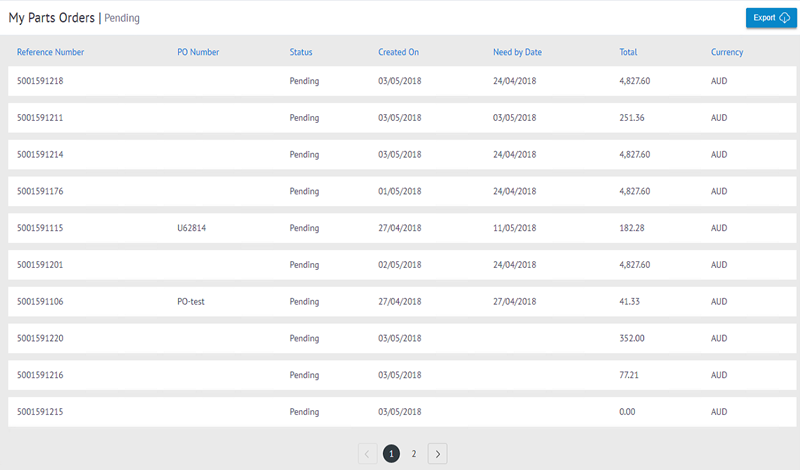
See example my parts order grid veiw, user can search by Reference Number, PO Number or Status because they are defined as searchable columns in SQL query (value passed by @dataset_query)
Find below SQL query examples based on different update type
Example 1 - Full Update Type
The column names you defined in SQL query are to be converted to SQL table column names on cloud.
DECLARE @LegalEntity CHAR(2) = 'A%';

SELECT  RECID AS [RecId]
      , ACTIVITY AS [Activity]
      , DESCRIPTION AS [Description]
      , UPPER(DATAAREAID) AS [Legal Entity]
FROM    dbo.JMGIPCACTIVITY
WHERE   DATAAREAID LIKE @LegalEntity;
Example 2 - Incremental Update Type
In selection criteria, you can specify a comparable column (e.g. Modified Date Time) to compare with @dataset_lastExecuted macros (In this case, Modified Data is set to Incremental column), so each update job only need to query the delta data that is greater than current Max value of Modified Data.
DECLARE @LegalEntity CHAR(2) = 'A%';

SELECT  RECID AS [RecId]
      , PROJID AS [Project Id]
      , NAME AS [Project Name]
      , MODIFIEDDATETIME AS [Modified Date]
      , UPPER (DATAAREAID) AS [Legal Entity]
FROM    dbo.PROJTABLE
WHERE   STATUS = 4
AND     DATAAREAID LIKE @LegalEntity
AND     MODIFIEDDATETIME > @dataset_lastExecuted;
Example 3 - Live Update Type
In selection criteria, you can specify the column to compare with @app_entityNumbers and @app_le macros (the values from current user token) to filter the records only belong to this entity.
SELECT  [RecId]
      , [Model]
      , [Model Description]
      , [Manufacturer]
      , [Customer Purchase Order Number] AS [PO Number]
      , CONVERT(VARCHAR(10), [Purchase Order Date], 103) AS [PO Date]
      , CONVERT(VARCHAR(10), [Estimated Delivery Date], 103) AS [Est. Delivery]
      , [Is Attachment]
      , [Project] AS [Reference Number]
      , [Customer Account]
      , [Customer Name]
FROM    [dbo].[DataSet_ActiveEquipmentOrders]
WHERE   (CONCAT(@app_entityNumbers) = '' OR [Customer Account] IN ( @app_entityNumbers ))
AND     (@dataset_query IS NULL OR  [Serial Number] LIKE '%' + @dataset_query + '%')
AND     (@app_le IS NULL OR [Legal Entity] = @app_le)
ORDER BY [RecId] DESC OFFSET @dataset_offset ROWS FETCH NEXT @dataset_limit ROWS ONLY;
Example 4 - Live Update Type
In selection criteria, you can specify @dataset_query, @dataset_offset and @dataset_limit macros to filter the records.
SELECT    soh.[RecId] AS [RecId]
         ,soh.[Order Number] AS [Reference Number]
         ,soh.[Purchase Order Number] AS [PO Number]
         ,soh.[Order Status] AS  [Status]
         ,soh.[Sales Order Created Date] AS [Created On]
         ,sol.[RecId] AS [LineRecId]
         ,sol.[Item Number] AS [Item Number]
FROM [dbo].[DataSet_SalesOrderHeader] soh
LEFT JOIN [dbo].[DataSet_SalesOrderLine] AS sol
ON sol.[Sales ID] = soh.[Order Number] AND sol.[Legal Entity] = soh.[Legal Entity]
WHERE       ( CONCAT(@app_entityNumbers) = '' OR   [Invoice Account] IN ( @app_entityNumbers ))
AND
            (   @dataset_query IS NULL
            OR
            (   [Order Number] LIKE @dataset_query + '%'
            OR   [Order Status] LIKE @dataset_query + '%'
            OR   [Purchase Order Number] LIKE @dataset_query + '%' ))
AND       ( @app_le IS NULL OR [Legal Entity] = @app_le )
ORDER BY  [RecId] DESC OFFSET @dataset_offset ROWS FETCH NEXT @dataset_limit ROWS ONLY ) AS soh
Data Set Configuration Tabs
Generally, you can see below tabs (They would looks a little bit different based on their update type).
- Properties : Data set properies and enable button for data refresh
- Power BI : (Update later)
- Alerts : You can proivide email addresses here to receive alters when data refresh jobs failed
Full Update Type
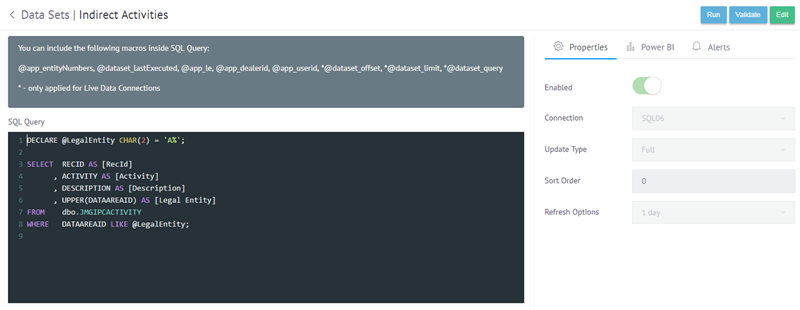
- Enabled
- Yes, create a data refresh scheduled job for the data set.
- No - remove the scheduled job
- Connection : Connection the data set to use
- Update Type : Full
- Sort Order : (Update later)
- Refresh Options : Recurrence time for data refresh
Incremental Update Type
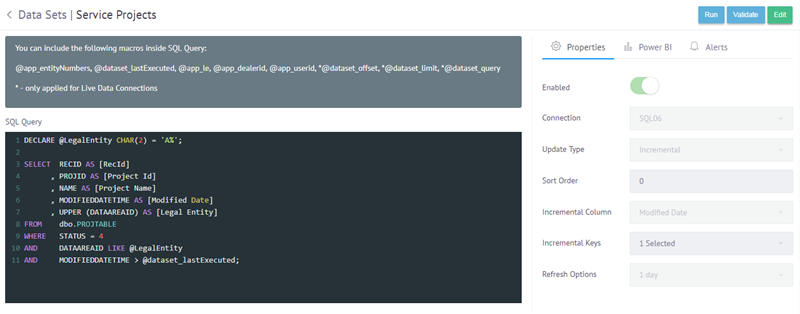
- Incremental Column : A column for incremental update (e.g. Modified Date, then it generates max value of Modified Date in current data set to @dataset_lastExecuted macros)
- Incremental Key : A combination of columns as a key to ensure the record is unique (e.g. RecId)
Live Update Type
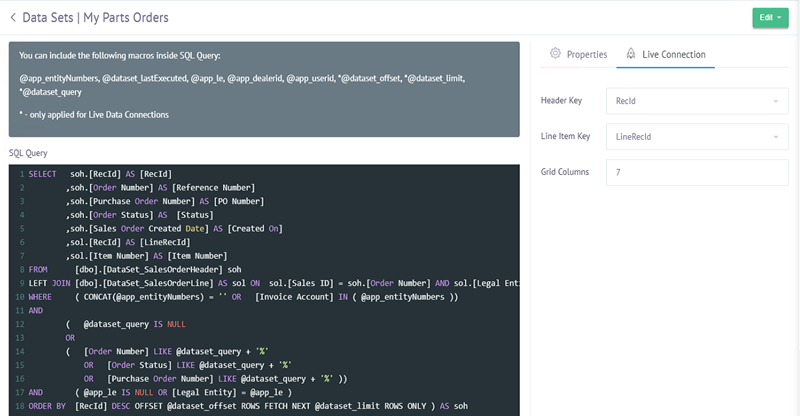
For Live data set, there is no PowerBI and Alerts tabs but a Live Connection tab which inlcudes,
- Header Key : All columns after this key are header columns (e.g.RecId, then Reference Number goes to header)
- Line Item Key : All columns after this key are line columns (e.g. LineRecId, then Item Number goes to line)
- Grid Columns : Specify number of columns to display in grid view
Reports
In Reports page, you can configure reports to be used for the platform.
New Report
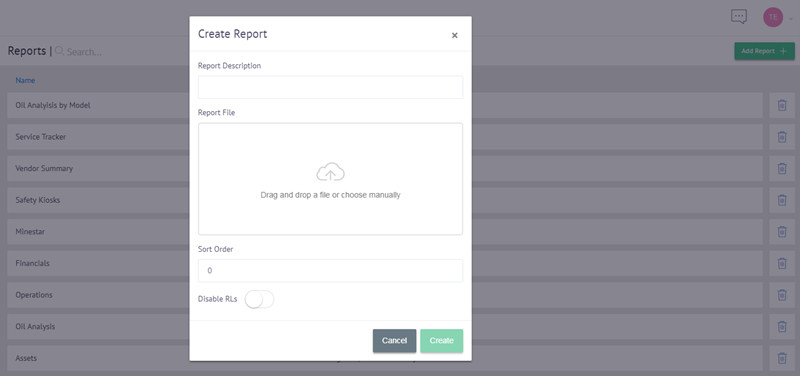
To add a new report you can click the Add Report button in the upper right corner, the following information must be entered:
- Report Description : Description of the report
- Report File : Power BI file to be uploaded
- Sort Order : The sort of this report item inside of report menu
- RLs (Row Level Security): you can only see what is related to the customer account that you have set. Only affects the customer, the admin can see everything
Edit Report
A report grid to show all reports you have created. At upper section, you can type in search box to filter the results.
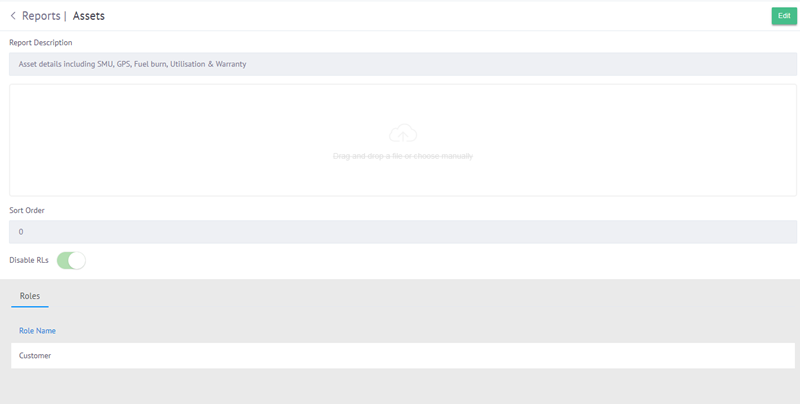
You can go the the details by clicking the row in reports grid, in detail page you are able to edit this report item.